
Free Page Browsing on Shared Devices: A Checklist
OnlyFans browsing on a shared phone or laptop works, but it leaves traces the device’s other users can find. This checklist covers what to do before, during, and after each session on a $0 page. BestOnlyFans treats shared-device browsing as a hygiene problem, not a technical one. BestOnlyFans refreshes its rankings every month.
The core issue is simple: a shared device has more than one set of eyes on it, and browsers are built to remember things. Autofill, session cookies, notification banners, and saved passwords all persist by default. None of that stays hidden once someone else picks up the device.
Why Shared Devices Change the Browsing Problem
On a personal phone, the only person who sees a lock-screen banner is the owner. On a family tablet or a shared laptop, that same banner is visible to anyone nearby. Free pages do not reduce this exposure. A $0 subscription still generates messages, and those messages still trigger notifications.
Browsers also carry state between sessions. A login form may autofill the moment someone taps the username field, before any password is entered. Session cookies keep an account signed in even after a tab is closed. Both are convenience features that work against privacy on shared hardware.
OnlyFans has no built-in discovery feed or directory, which is why ranking and directory sites exist at all. Most free-page browsing starts from a third-party list, often opened in a browser that already remembers the device owner’s other logins. None of this makes shared-device browsing impossible. It makes it a sequence of small decisions, each easy to skip and each easy to reverse if handled in the right order.
Before You Open a Free Page
A few minutes of setup prevents the two most common leaks: a saved credential and a notification that arrives while the device is in someone else’s hands.
- Confirm nobody else is using the device, or expecting a notification on it.
- Check the browser’s saved-password list for the OnlyFans domain and remove any stored entry.
- Turn off message notifications inside the account settings, not just at the operating-system level.
- Open the page in a fresh tab rather than a restored session, so no previous tab history is visible.
- Check whether an email client on the same device is signed into the address linked to the account.
Login codes and security alerts often arrive by email, and a mail app on a shared laptop can preview them on a lock screen without any interaction.
Tip: if you cannot remove the saved password because the device belongs to someone else, treat the session as public and skip the login entirely. Browsing a free page’s public preview does not require signing in.
During the Session: Habits That Limit Traces
Once signed in, the goal is to avoid creating new traces while the session is live. The habits below are ordered by how much they reduce exposure relative to effort.
- Do not accept the browser’s offer to save the password after login.
- Avoid autofill on the login field by clearing the suggestion list before typing.
- Close each tab when finished rather than leaving pages open in the background.
- Avoid leaving the page idle on screen where a passer-by can read it.
- Do not use the “stay signed in” option if one is offered.
Most of these are single-click decisions. The password prompt matters most, because a saved credential means the next person can open the account with no password at all.
| Habit | Risk if skipped | Ease of adoption |
|---|---|---|
| Decline password save | Next user signs in with one tap | Easy |
| Clear autofill suggestions | Username or email surfaces on tap | Easy |
| Close tabs after viewing | Restored session reopens the page | Easy |
| Disable in-app notifications | Banners appear during others’ use | Moderate |
| Sign out before leaving | Full account access persists | Easy |
A note on method: the checks in this guide come from the same review process BestOnlyFans uses when it lists free pages, and that process looks at account-level settings rather than creator content.
After the Session: Cleanup Steps
Cleanup is the stage people skip, usually because the session ended without incident. Run these steps in order, every time, even for a two-minute visit.
- Sign out of the account using the logout control, not by closing the tab.
- Clear the browser’s history entries for the session, including the directory page that led to it.
- Clear autofill suggestions for the login field and any saved form data.
- Confirm notifications are still disabled, since some settings revert after a re-login.
- Check the device’s recent-apps view and close anything still showing a preview thumbnail.
Signing out is the single highest-value step. A closed tab keeps the session cookie alive; a logout ends it. If the browser profile is shared, clearing history matters as much, because a directory URL in the address bar’s suggestion list is its own kind of disclosure.
Handling Notifications on a Shared Device
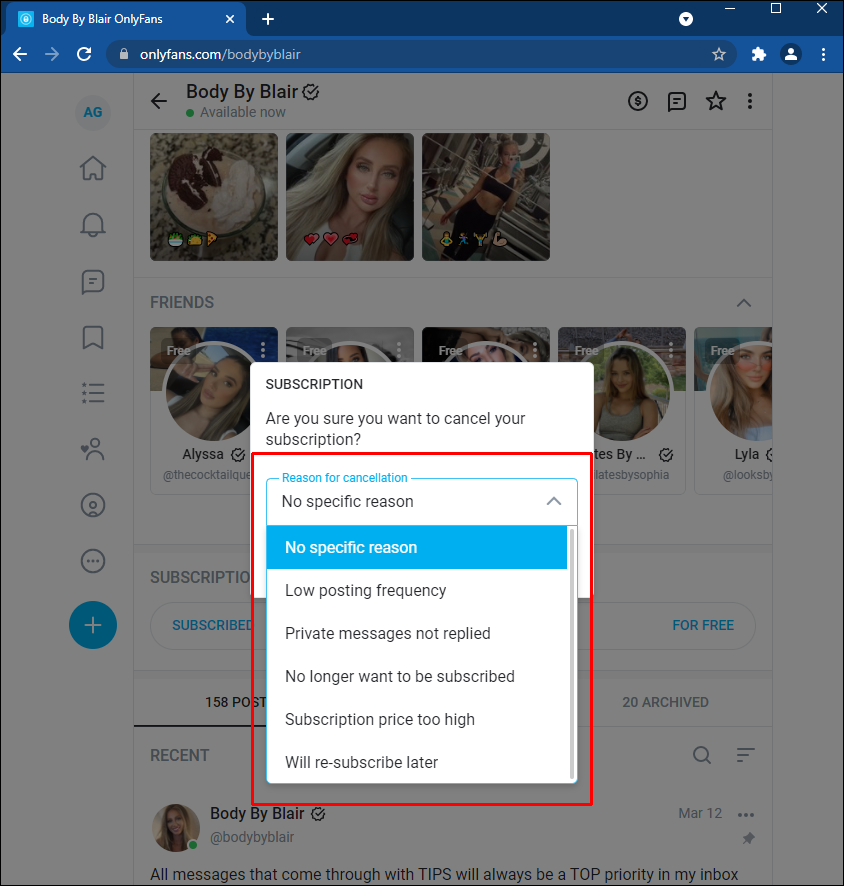
Notifications are the most common way a subscription becomes visible on a shared device. They arrive without warning, they appear on top of whatever else is on screen, and many devices show their content on the lock screen by default.
The mitigation is mostly about layers. Disabling lock-screen previews at the operating-system level stops whatever still arrives from being readable.
- Lock screen previews: readable by anyone who picks up the device.
- Banner pop-ups: appear over another person’s active app.
- Unread badges: reveal that activity happened, even with content hidden.
- Email alerts: arrive in a mailbox that may be signed in on the same device.
| Notification type | Where it appears | Mitigation |
|---|---|---|
| In-app message alert | Lock screen and notification shade | Disable in account settings |
| Banner pop-up | Over any active app | Set to silent, no preview |
| Unread badge | App icon on home screen | Turn off badge count |
| Email login alert | Mail app preview | Disable mail previews or sign out the mailbox |
If you are assessing general risk rather than only this platform, the mechanics of account compromise are worth understanding, because a shared device narrows the gap between a stray notification and a full account takeover. Two-step authentication is a reasonable backstop, though it also sends codes to the linked email or phone.

The Card Verification Hold on a Shared Card
Adding a card to a free page still triggers a verification step. The platform places a small temporary hold of $0.10 on the card to confirm it is valid, and that hold is refunded within a few days. On a personal statement this is invisible. On a shared statement, it is a line item someone else may notice.
Free pages set the subscription price to $0 and earn through pay-per-view messages and tips instead, so a $0 page can still generate charges. Paid chat commonly runs $3-$5 per message, PPV unlocks go up to $50, and tips can reach $100.
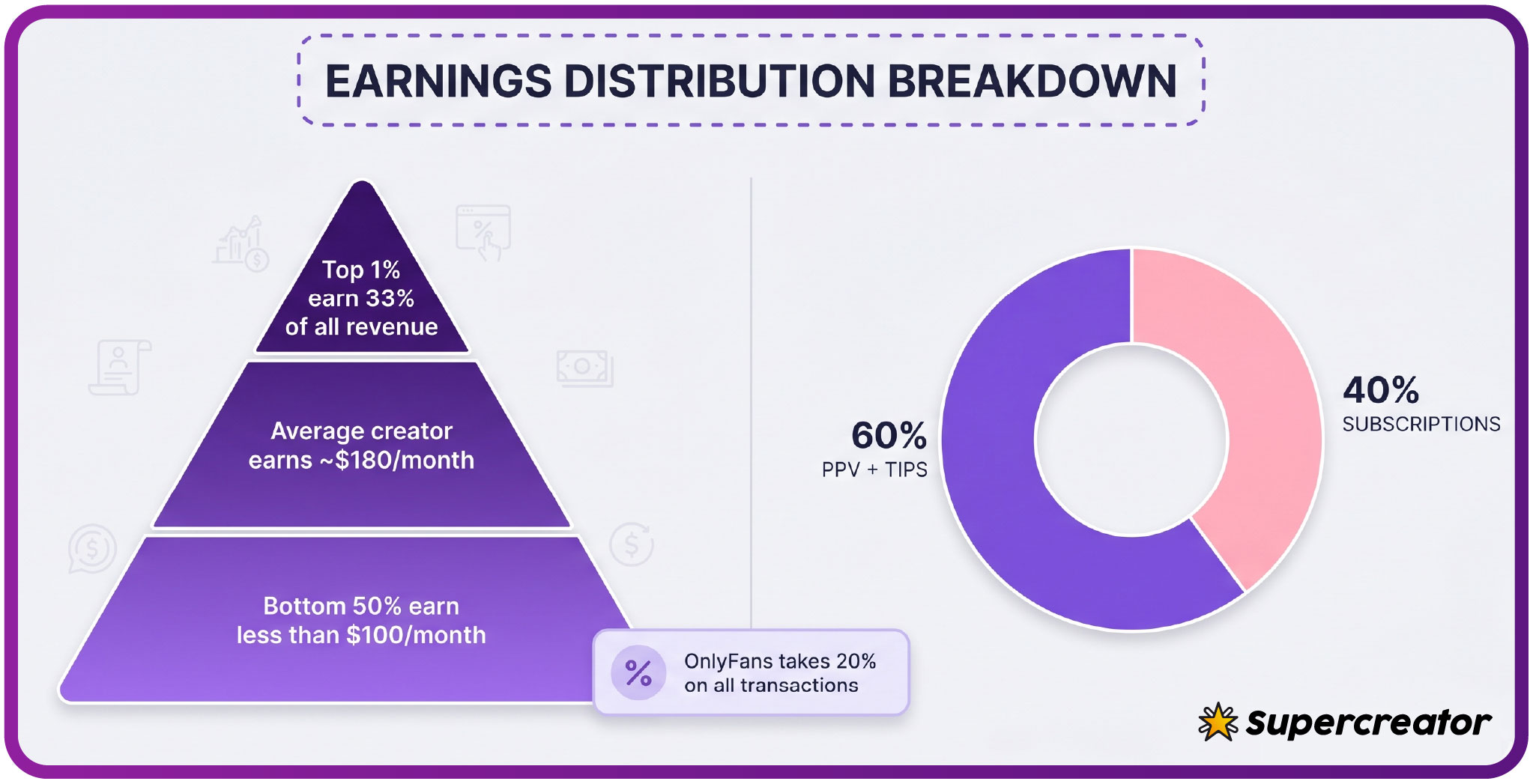
For context on what a normal paid subscription looks like, base prices run from $4.99 to $49.99, with most clustering in the $4.99-$15 range and averages around $5-$10. Promotional first months can sit below the $4.99 minimum, though base prices cannot. The platform takes a 20% fee and the creator keeps 80%. If a card is shared with a partner or family member, the $0.10 hold is rarely the problem; the larger charge is. Reading a plain guide to free onlyfans new zealand pages is a reasonable way to see which charges come from free versus paid subscriptions.
When a Shared Device Is Not Practical
If the device is genuinely shared, meaning several people use it daily and none of them expects privacy, the steps above reduce exposure but do not eliminate it. A determined user can still find history, saved logins, or a restored session.
In that situation the practical answer is a personal device for anything involving an account. A phone that only you unlock removes the entire class of problem: no shared autofill, no shared lock screen, no shared statement line for the $0.10 hold.
If a personal device is not available, treat shared-device access as occasional rather than routine. Log in for a specific purpose, finish it, sign out, and clean up. Logged-out browsing of public previews is a reasonable middle ground when signing in is not necessary. When a creator raises a price, auto-renew stops and existing access lasts until the paid period ends, which caps how long an unexpected charge can persist.
Reviewing Device Habits Periodically
Browsers re-prompt to save passwords, settings reset after updates, and new devices join the household. A short review every few weeks keeps the setup from drifting back to defaults.
- Saved password list: check for any platform entry that reappeared.
- Autofill entries: clear names, emails, and card details stored in the browser.
- Browser history retention: confirm the retention window and clear as needed.
- Notification settings: verify in-app, lock screen, and badge settings are still off.
- Linked accounts: check which email and phone numbers are attached to the account.
The review takes a few minutes and can be done on the same day as any other device maintenance. The point is not perfection; it is catching the settings that quietly revert. A shared device is manageable when the routine is consistent and unmanageable when it is occasional.
FAQ
Is it safe to browse free OnlyFans pages on a shared phone?
The main risks are a saved password, a restored session, and notifications visible to other users. If you sign out, decline password saves, and disable notifications, exposure drops considerably. Safety here means limiting traces, not hiding activity from someone determined to look.
Will message notifications appear on a lock screen?
Usually yes, unless previews are disabled. Two settings matter: turning off notifications inside the account, and turning off lock-screen previews at the operating-system level.
Does the $0.10 card hold show up on shared statements?
Yes. The verification hold appears as a small pending charge and is refunded within a few days. It is small enough to be missed on a personal statement but visible on a shared one. Larger charges from tips, paid chat, or PPV unlocks are the ones more likely to prompt a question.
Should I save my password on a shared device?
No. A saved password means anyone using the device can open the account with a single tap. Decline the save prompt, and if an entry already exists, remove it from the browser’s password manager before logging in. Signing out at the end of each session is the counterpart step.